To use the Intero print system, you'll first need to register with UniFlow Online. This ensures you can securely release print jobs from any connected printer using your personal PIN code.
Follow the steps below to complete your registration:
1. Launch the UniFlow Registration Tool
After the UniFlow client has been deployed to your device, you’ll see a prompt the next time you log in or restart your computer.
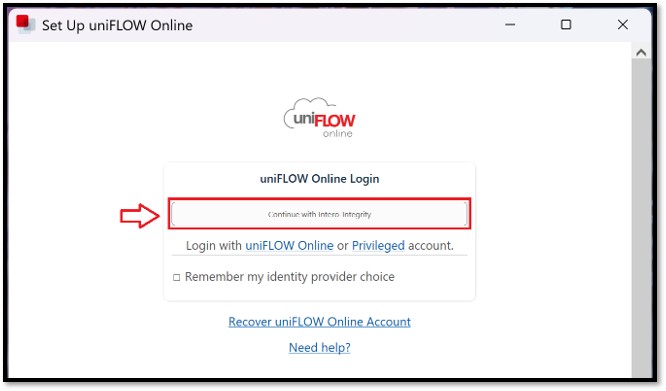
When the registration window appears, click “Continue with Intero-Integrity”.
If your browser opens and shows a Microsoft login screen, sign in with your Intero email address and password.
Note: If the UniFlow client is not installed on your computer, please install it from the Company Portal.
2. Receive Your PIN Code
After registration, you’ll automatically receive an email with your personal 6-digit PIN code.
This PIN is required to release print jobs from any UniFlow-enabled printer.
Please note: You cannot choose your own PIN.
4. You're Ready to Print
You can now print documents as usual.
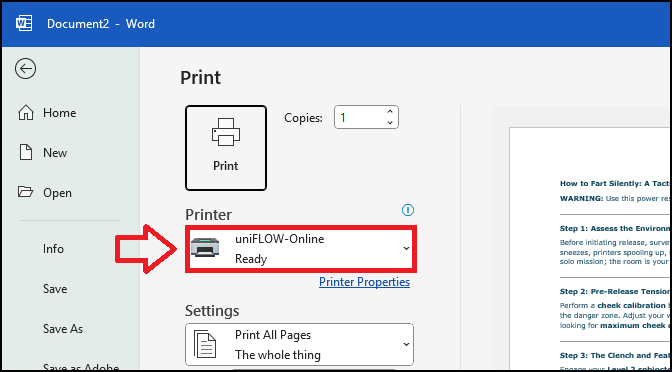
- Choose the uniFLOW-Online printer and click Print
When you go to a printer:
Select "Secure Print" on the device screen.
Enter your PIN code to access and release your print jobs.
Troubleshooting
If the registration screen doesn’t appear, try restarting your computer.
If you didn’t receive your PIN code, check your spam folder or contact the help desk.
For any other issues, please reach out to the help desk.
Was this article helpful?
That’s Great!
Thank you for your feedback
Sorry! We couldn't be helpful
Thank you for your feedback
Feedback sent
We appreciate your effort and will try to fix the article