Using a Windows Hello PIN allows you to sign in to your device quickly and securely with a numeric code.
A PIN is tied to your device and stays local, so it can't be used on another computer.
Steps to Create a Windows Hello PIN
Open Settings
Press Windows key + I on your keyboard.
Or click Start and select the Settings gear icon.
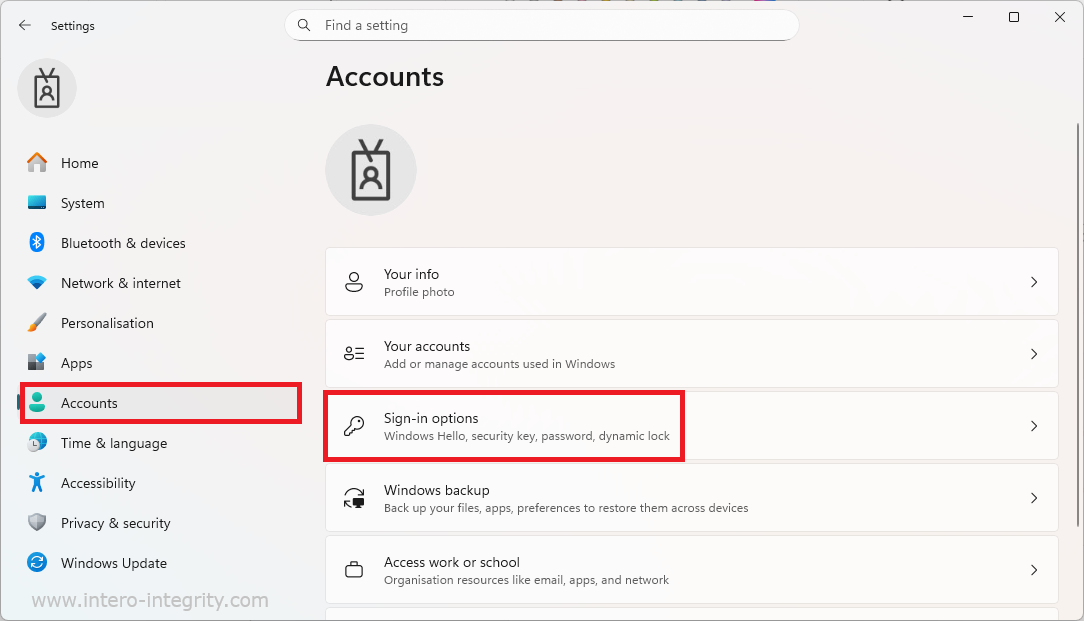
Go to Accounts
In the Settings window, select Accounts from the left-hand menu.
Access Sign-in Options
In the Accounts pane, select Sign-in options.
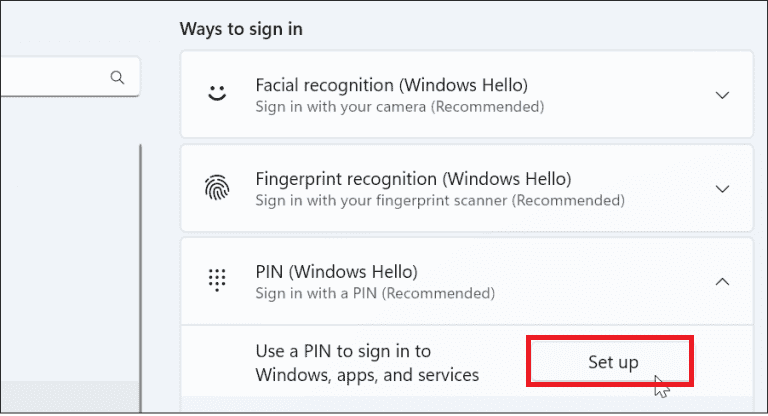
Find the PIN (Windows Hello) Section
Under Ways to sign in, locate Windows Hello PIN.
Click Set up
Verify Your Identity
If prompted, enter your current password to verify your account.
Choose a PIN
In the PIN setup window:
Enter a PIN of at least six digits.
Re-enter the PIN to confirm.
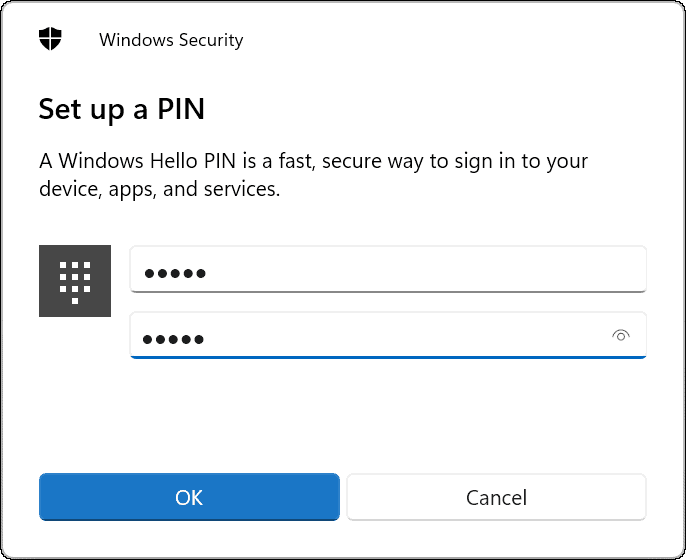
Finish Setup
Click OK to complete.
You will now see “Windows Hello PIN” listed with a status of Set up.
Troubleshooting
If you do not see the option to add a PIN
- Windows Hello PIN is only enabled on devices that have Trusted Platform Module (TPM) chip.
- Windows Hello is not available on kiosk devices, VM's and servers operating systems.
If you cannot complete PIN setup
- Restart the device and try again
- Contact support if the PIN setup repeatedly fails.
Was this article helpful?
That’s Great!
Thank you for your feedback
Sorry! We couldn't be helpful
Thank you for your feedback
Feedback sent
We appreciate your effort and will try to fix the article