Multi-Factor Authentication (MFA) helps protect your account by requiring a second form of verification in addition to your password. This guide shows you how to set up MFA for your Intero Integrity account using the Microsoft Authenticator app.
Prerequisites
A smartphone (iOS or Android)
Microsoft Authenticator app installed:
Note: Other authenticator apps (like Google Authenticator) are also supported but the process is slightly different. This guide will only cover setting up the Microsoft authenticator app.
Step 1: Sign in to Security Info
Open a browser and go to: https://mysignins.microsoft.com/security-info
Sign in with your Intero Integrity email and password.
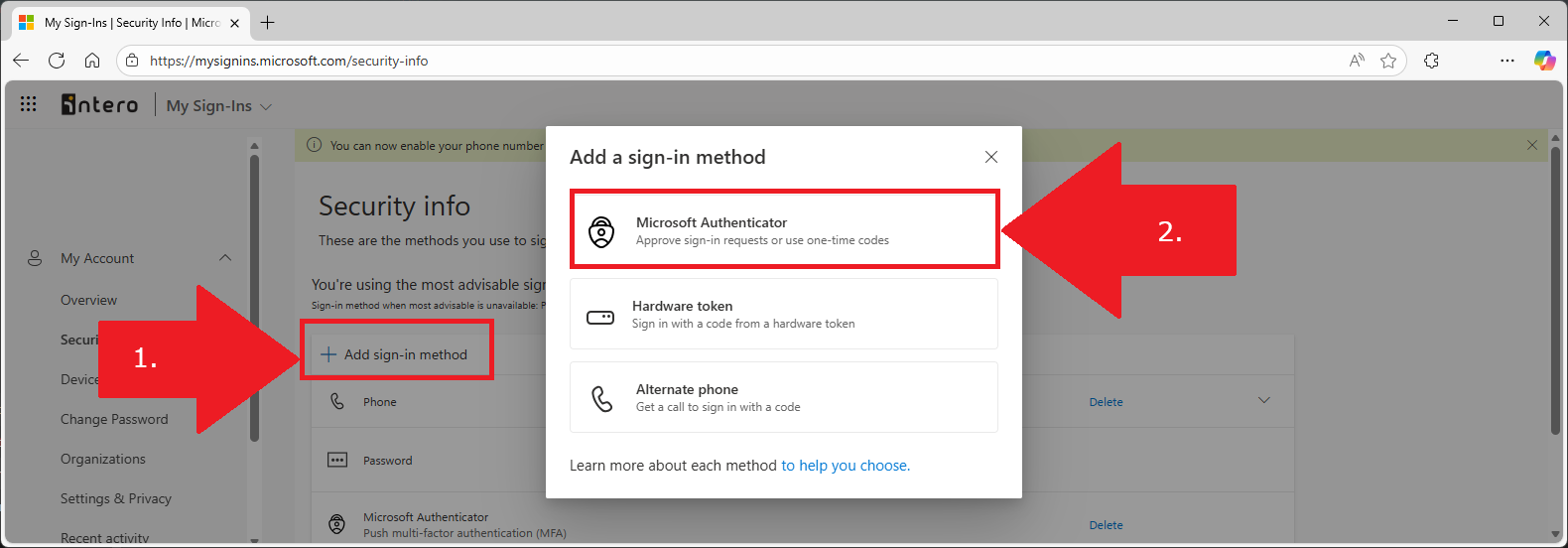
Step 2: Add the Authenticator App
Click Add sign-in method.
Select Microsoft Authenticator from the dropdown.
A QR code will be displayed
Step 3: Connect Your Mobile Device
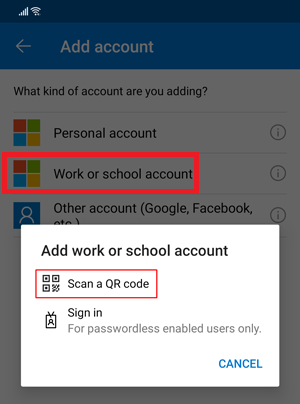
Open the Authenticator app on your phone.
Tap Add account (or the + icon) → Work or school account.
Scan the QR code displayed on your computer.
The app will automatically link your account.
Step 4: Approve and Complete
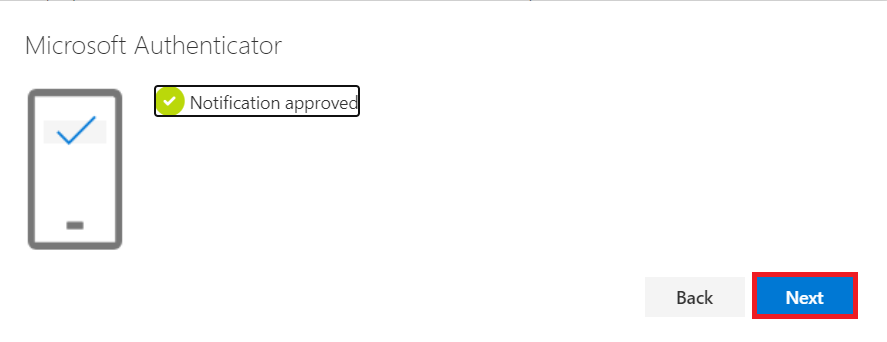
Approve the verification notification sent to your phone.
Click Next on your computer.
A confirmation screen will indicate MFA is now active.
Step 5: Optional Backup Methods
You can add additional verification methods for recovery, such as:
Phone (SMS or call)
Alternate email
To add backup methods, go to Security info → Add method.
Notes
MFA will prompt you when signing in from new devices, browsers or from new locations.
If you lose access to your Authenticator app, use your backup method to sign in and reset MFA or contact the helpdesk.
If you lose/replace your phone, please contact the help desk.
Don't have a phone? Please contact the help desk.
Was this article helpful?
That’s Great!
Thank you for your feedback
Sorry! We couldn't be helpful
Thank you for your feedback
Feedback sent
We appreciate your effort and will try to fix the article