Purpose
This article explains how to use the Microsoft Company Portal to install company-approved applications on your Windows device and view installed software.
What is Company Portal?
Company Portal is the application that allows you to:
Install approved company software
View applications already installed on your device
Check installation status
Sync your device with company systems
Only software that has been approved and published by IT will appear in Company Portal.
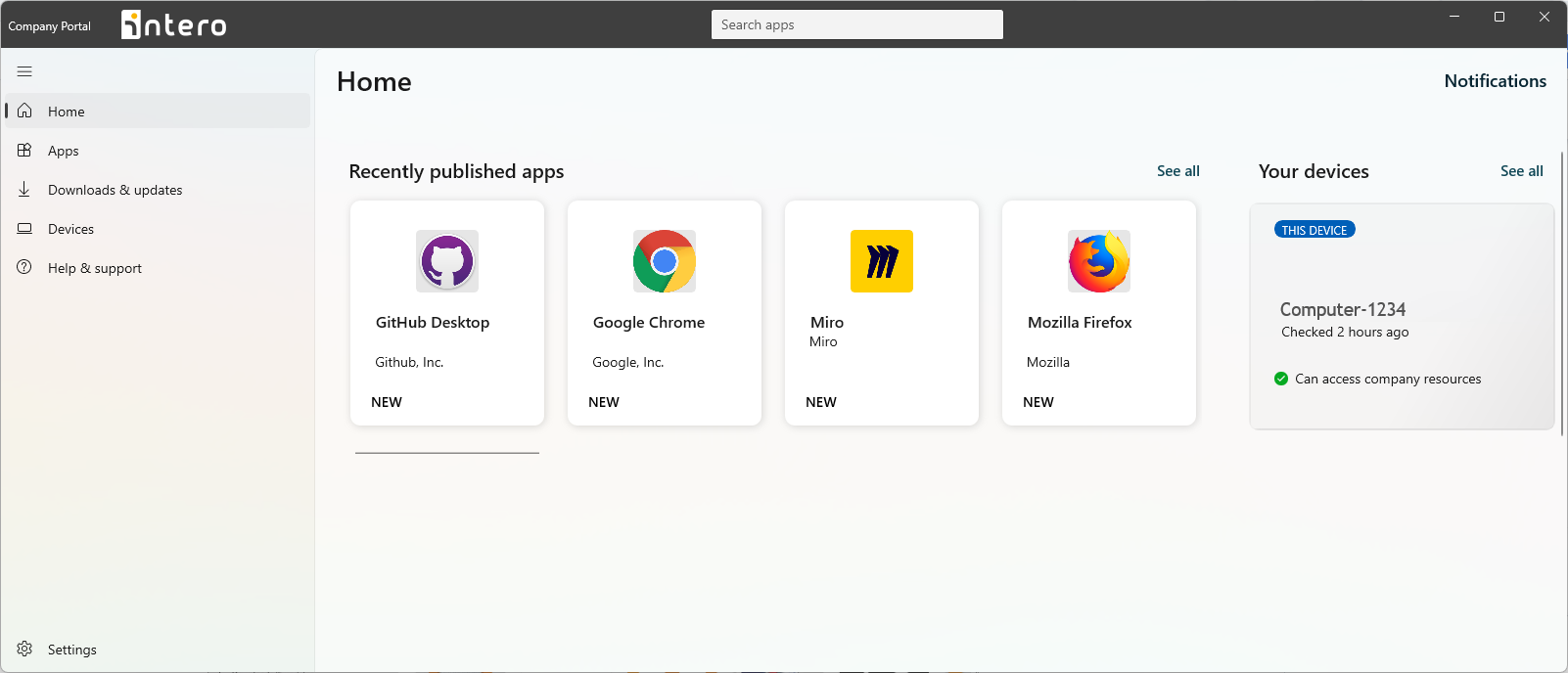
How to Open Company Portal
Click Start.
Type Company Portal.
Select the Company Portal app from the results.
If Company Portal is not installed on your device, please refer to the article: How to install the Company Portal app.

Install an Application
Open Company Portal.
Select Apps from the left menu.
Browse or search for the required application.
Click the application.
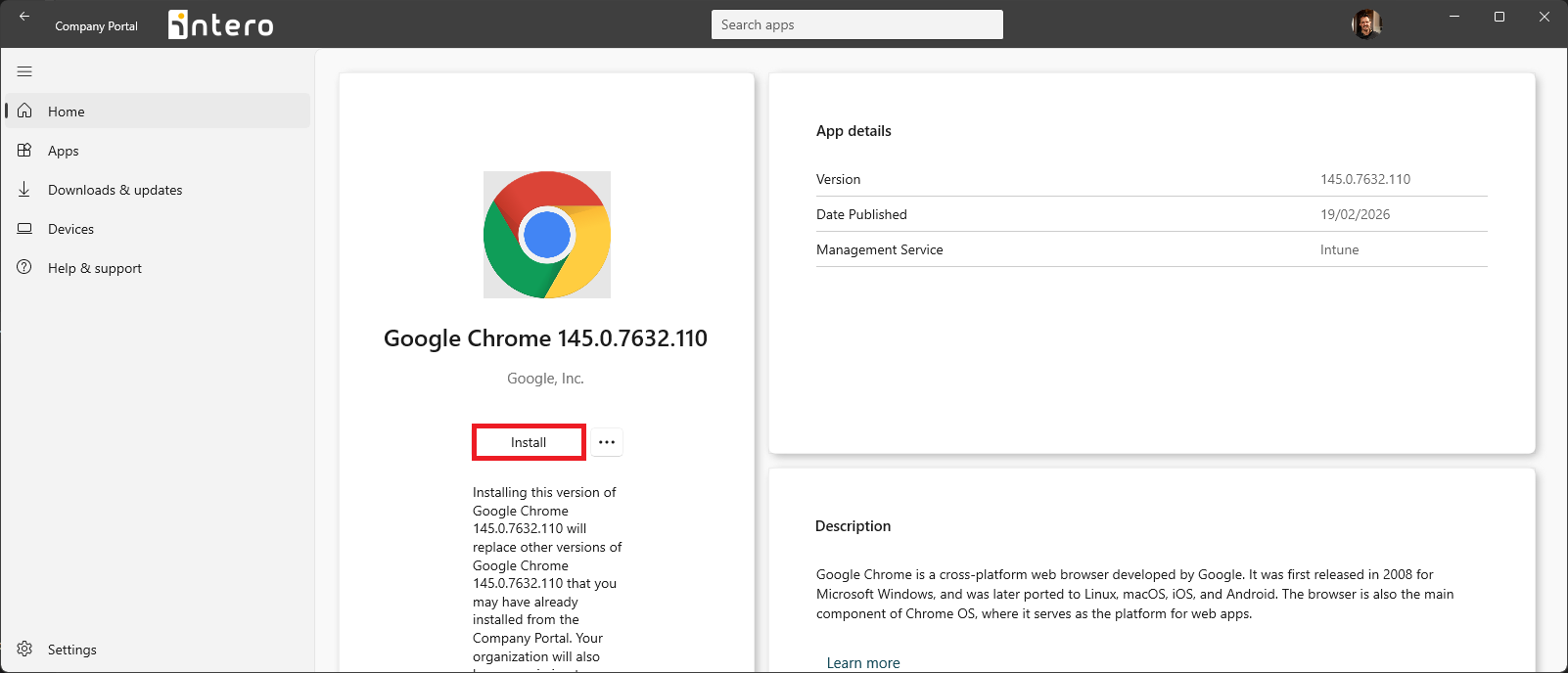
Select Install.
The installation will start automatically.
You can continue working while the installation runs in the background.
Check Installation Status
To view installation progress:
Open Company Portal.
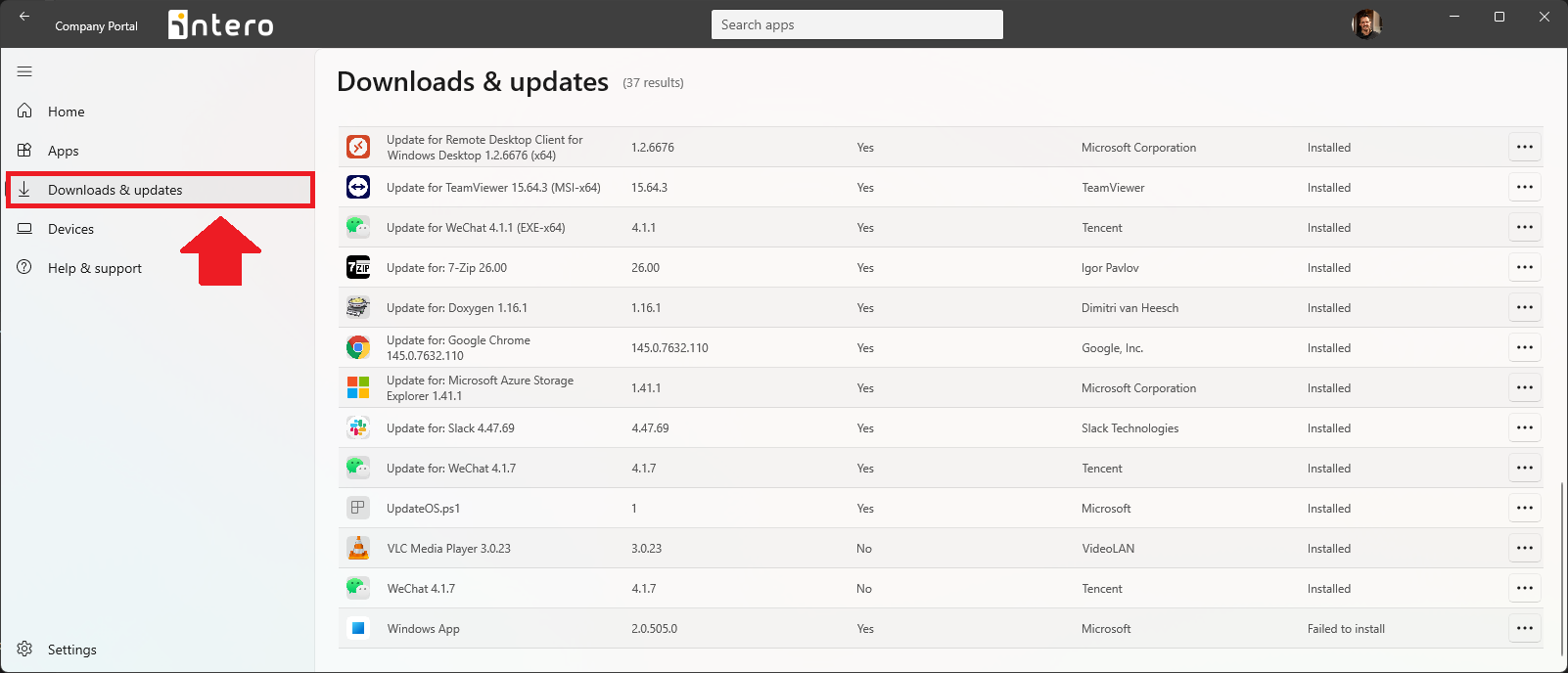
Select Downloads & updates.
This section shows:
Applications currently installing
Recently installed applications
Available updates
If an Application Is Not Listed
If the required application does not appear in Company Portal:
It may not be approved for your role.
It may require additional licensing or approval.
Please submit a ticket to IT with:
The name of the application
The business reason for the request
Troubleshooting
Application fails to install
Restart your device and try again.
Open Company Portal → Settings → Sync.
Check your internet connection.
If the issue persists, contact IT.
Company Portal does not open
Restart your device.
If the problem continues, submit a support request.
Was this article helpful?
That’s Great!
Thank you for your feedback
Sorry! We couldn't be helpful
Thank you for your feedback
Feedback sent
We appreciate your effort and will try to fix the article